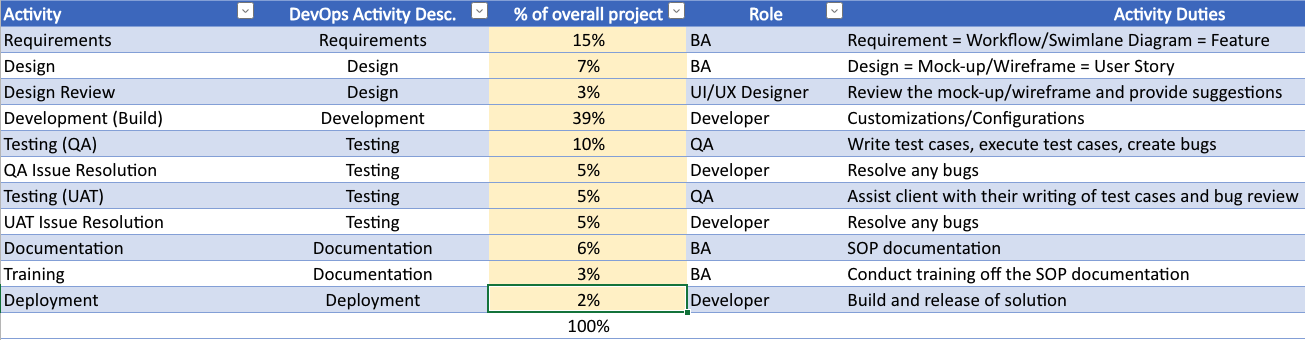
A detailed breakdown of a real-world Dynamics 365 CRM and Power Apps implementation plan, including percentage effort by phase, roles, and governance structure.
Viewing entries in
SOFTWARE DEVELOPMENT
A detailed breakdown of a real-world Dynamics 365 CRM and Power Apps implementation plan, including percentage effort by phase, roles, and governance structure.
Solution version numbers are important for a number of reasons. For example, they help users know if the solution they are using is the latest, the let people know if the version they are using has bug fixes present, and they help Development teams identify specific builds and configurations in question to do their work on. Patch management in Dynamics 365 also impacts our version numbers.
When it comes to Dynamics 365 CRM implementations, the need for "patch" solutions arises as a practical and agile approach to addressing bugs or issues that may surface for your released solution in production while you are in the middle of a build cycle to add new features to the solution.
Imagine coming across an unexpected bug while in the midst of your build cycle. Instead of waiting for a full solution release, patch solutions provide a targeted and efficient way to deploy specific changes or fixes to the affected environments.
By leveraging patch solutions, organizations can implement crucial bug fixes without the need for a complete release that may contain unfinished work.
A "hot fix" is a focused and expedited solution that targets critical issues or bugs. It is specifically designed to provide an immediate resolution to urgent problems that may negatively impact system functionality or user experience. "Hot fixes" are typically deployed swiftly to mitigate disruptions and ensure the smooth operation of your Dynamics 365 CRM system.
On the other hand, a "patch" is an update that encompasses a bundle of fixes, updates, or enhancements. It is a more comprehensive solution that addresses multiple issues or introduces multiple improvements simultaneously. "Patches" are typically released at regular intervals and are aimed at enhancing the overall performance, stability, and security of the Dynamics 365 CRM system.
The main distinction lies in the scope and focus of each solution. While a "hot fix" hones in on a specific critical issue, a "patch" casts a wider net, encompassing multiple fixes and enhancements in a consolidated package.
In the realm of Dynamics 365 CRM solution management, the distinction between "hot fixes" and "patches" may not always be a significant factor. When it comes to deploying updates, my approach focuses on utilizing patches to address critical issues and ensure system stability, rather than introducing new functionality.
When you create a patch for an unmanaged solution, the recommendation is that you update the fourth section of the version number.
The version number in Dynamics 365 solutions follow the format Major.Minor.Build.Revision.
The major version number is typically incremented when there are significant changes or major releases of the solution. It is typically incremented at the start of a project.
The minor version number is incremented for enhancements (i.e., new feature releases) that do not introduce breaking changes.
The build number is used for internal tracking and may be incremented for each build or release. A build in traditional software development is when you compile your code into an executable. In the Dynamics 365 world, a build is when you generate a
The revision number is the section that increments when created a patch for an unmanaged solution.
For example, if your solution has a version number of 1.0.0.0 and you create a patch, then increment the revision number to 1.0.0.1. This indicates that the patch is a hot fix to the existing solution.
When completing a build cycle, the ultimate goal is to introduce new functionality into the production environment. Simultaneously, there might be an existing patch solution addressing a critical bug that requires immediate attention. To seamlessly merge these elements, we rely on the "clone the solution" feature.
When you do this it will increment the minor number. For example, if your solution is now 1.0.0.1 and you pull the patch back into the main solution with the Clone to Solution feature, then the version number would become 1.1.0.0.
In the ever changing world of generating Power Apps, CRM solutions, and Power Portals for customers, we often do not give a thought to the font being used. Microsoft does have a prescribed font though and it is part of a bigger design system called "Fluent".
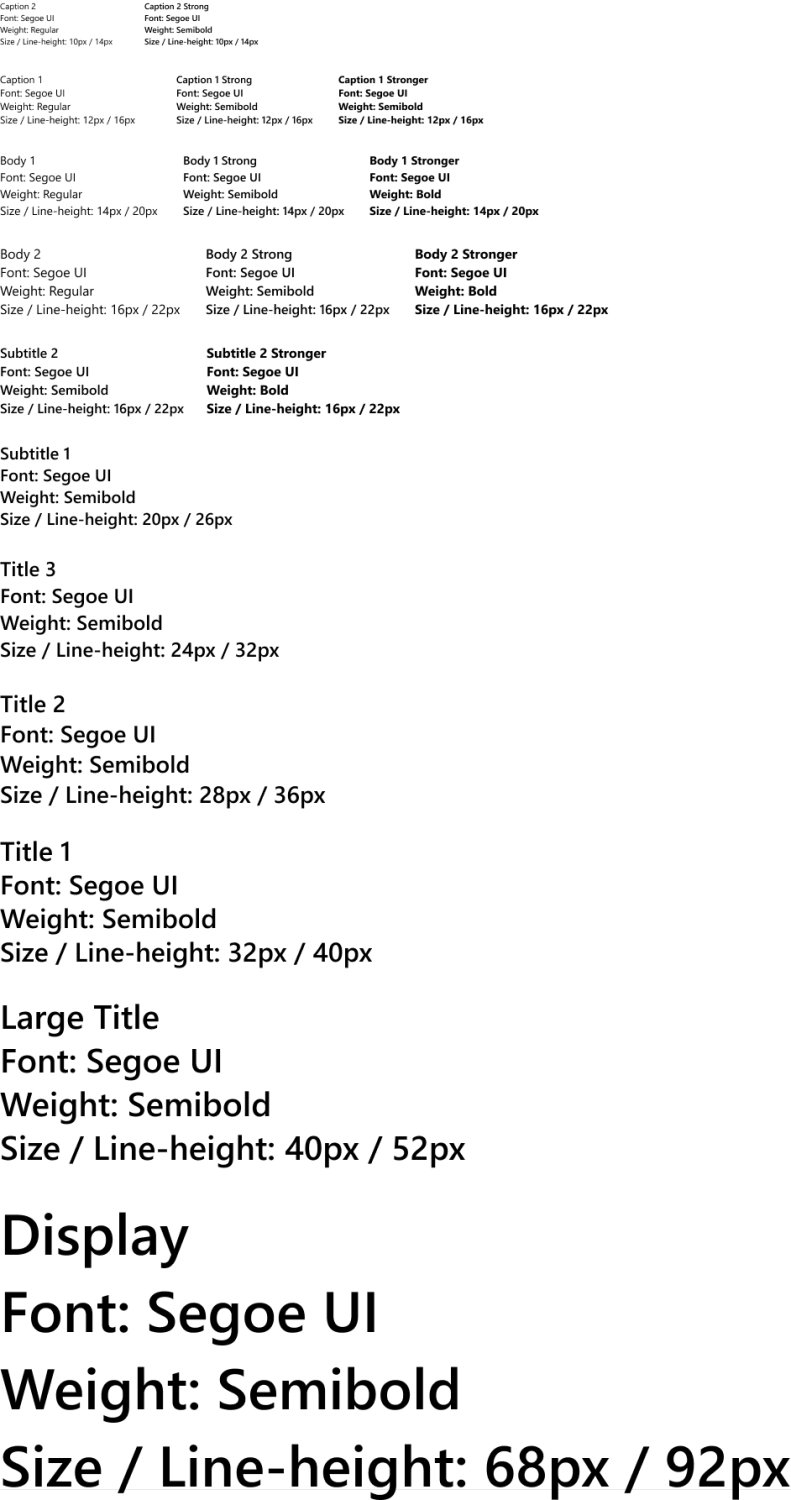
The Microsoft Fluent Design System employs a font called Segoe UI. It is pronounced like this: se-goe OR se-go-eh.
Microsoft has considered readability across various devices and platforms when choosing this font. If you are on an Android device and Segoe UI is not available on that device, then Android will use the native Roboto font. On a macOS/iOS device if the Segoe UI font is not available, then the native font used is San Francisco Pro Display.
Now that we know Microsoft uses Segoe UI as the font, it is important to understand what a "type ramp", also known as a "type scale", is. A type ramp is a range of type sized related to each other by a growth ratio. It provides a standardized set of font sizes.
The five font sizes we see in Dynamics 365 CRM and Power Apps are:
Form Header -- This is the oversized font we see at the top of forms in the header. For example, on the contact form it is the contact name. It is the primary field for a table. For this, Microsoft uses "Subtitle 1", which is Segoe UI, semibold, with a font size of 20px, and a line-height of 26px.
Tabs -- This is the font for the tabs you see on your form. They are "Body 2", which is Segoe UI, regular, with a font size of 16px, and a line-height of 22px.
Selected tabs -- This is the font you see for the selected tab on the form. They are "Body 2 strong", which is Segoe UI, semibold, with a font size of 16px, and a line-height of 22px.
Section headers and sitemap group names -- This is for the name you see on a section found on a form and it is also for the name of a group of entities grouped together on the sitemap. They are "Body 1 strong", which is Segoe UI, semibold, with a font size of 14px, and a line-height of 22px.
Everything else -- For everything else, you are looking at "Body 1", which is Segoe UI, regular, with a font size of 14px, and a line-height of 22px.
In the world of implementing customized software solutions, such as Microsoft Dynamics 365 CRM solutions, the project kick-off meeting helps set the stage for a successful project. This pivotal gathering brings together key stakeholders from both the consultancy and client side to align their visions, establish rapport, and lay the foundation for a collaborative journey. In this article, we look at the six essential elements of a project kick-off meeting, shedding light on the significance of each item.
At the heart of any successful project lies a shared understanding of its purpose. The purpose of reviewing the project overview is to ensure that all project team members are on the same page. With a common understanding of why the project is being undertaken, we can align our efforts toward a common goal and foster a sense of purpose and motivation among team members.
In this segment, we, the consultancy, introduce our project team, usually comprising the Project Manager, Business Analyst, Delivery Lead, one or more Developers, and Testers. Equally important is acquainting ourselves with the client-side team, including the project's Executive Sponsor, client-side Project Manager, and relevant Subject Matter Experts (SMEs). This introduction fosters relationships, establishes open lines of communication, and sets the stage for effective collaboration.
A project without a plan is like a ship adrift at sea. During the kick-off meeting, we outline the high-level plan, indicating which features we intend to work on during which sprint and align the sprints to a calendar. In addition to the high-level plan, we identify all the stat holidays taking place during the project and any planned vacation days by the project team.
Every project carries inherent risks, and the kick-off meeting is an opportune time to address them. By discussing known risks and defining a risk mitigation strategy, we proactively manage potential hurdles. This transparent discussion instills confidence and demonstrates our commitment to delivering a quality solution while minimizing disruptions. The risk mitigations we propose also help to identify the project governance structure.
In an agile environment, effective project management is key. During this segment, we outline the agile meeting rituals that will govern each sprint. We also discuss how we will leverage Microsoft Azure DevOps to manage the project's backlog, sprint board, test plans, build/release strategy, and repository. This walkthrough ensures that everyone is familiar with the project's management processes, fostering transparency and alignment.
For the last step of the kick-off meeting, we focus on the immediate actions that will propel the project forward. These next steps typically involve (1) collaborating on the environment and user setup, as well as (2) scheduling all the agile meetings.
By clarifying responsibilities and establishing a clear path forward, we set the stage for a smooth and efficient project execution.
Customer requirements generally map to features, NOT user stories. Learn the critical difference between features and user stories.
Just because something is written as “As a user, I need …” doesn’t make it a user story. Learn the critical difference between features, user stories, and tasks.